
Why this guide exists
Quite a few Neat French Cleat buyers do something pretty wild: they buy their first laser specifically to build A Neat French Cleat Wall. That’s exciting, but it can also be overwhelming when you’re staring at a new machine and a pile of plywood.
This guide is for those first‑time laser owners – a simple, step‑by‑step way to set things up, run your first tests, and start cutting parts you’ll actually use on your French cleat wall.
Connecting your laser to Lightburn
Your laser won’t work on its own. You’ll need some software to “drive” it.
Most people use Lightburn to do this. It’s pretty much the industry standard.
So, once you have assembled your machine n, you’ll need to connect it to Lightburn. Fortunately, this is super simple. As long as your laser isn’t an obscure Chinese brand (no brand), Lightburn should auto-detect your laser. This video shows you how to do that…
PS… Skip making the keychain part, as we’ll cover focus and power/speed settings before cutting anything (see below).
Safety Precautions

First off, let’s talk about safety.
Do not leave your laser unattended when it’s working.
I’m not saying this for the sake of it. A faulty laser, or user error, can burn your workshop down. This is especially true when starting out. As you experiment with speed and power settings, you may set fire to your material (we’ve all done it).
I came across this on Reddit, and it’s worth bearing in mind at all times…
There are two types of people who own and use laser cutters, those who have had their laser catch fire and those whose lasers will catch fire. Stay in sight of your laser while it’s running.
✅ Buy a suitable fire extinguisher and keep it handy. Better safe than sorry. Don’t keep the extinguisher by the machine; keep it near the door.
Before your first cut
- Make sure the machine is assembled solidly, the bed is level, and nothing can wobble mid‑cut.
- Check ventilation and extraction so you’re not filling the workshop with smoke – plywood will smoke more than you think.
- Focus the laser carefully on a scrap piece of the same thickness of plywood you’ll use for your cleats. A badly focused beam is the fastest way to get messy edges and half‑cut parts.
- Make sure that the frame moves smoothly in both (X and Y) directions.
- Focus is set to your actual material thickness (see below)
- Plywood lies flat on the bed (no warping or clips in the cut path)
Quick test cuts that save plywood
There are 3 main variables when it comes to laser cutting (and engraving). They are focus, speed, and power.
How to focus the laser
The first variable to set is focus. It’s pretty easy to determine focus, as the correct focus setting information will come with your laser.
For instance, my Sculpfun S9 came with a small aluminium cylinder that needs to be placed between the item to be cut and the bottom of the laser housing. This ensures that the laser will be in focus. If you change the thickness of what you are cutting or engraving, you loosen the screws, reinsert the cylinder and tighten the screws. It’s very simple.

Most diode lasers use a similar system.
But with some lasers, the focal height is controlled in the software.
Most CO2 lasers park the laser head at a certain height above the bed, and you’ll need to lower the laser to the correct height each time, depending on the thickness of the material that you are working with.
Thankfully, there are lots of videos covering how to do this on YouTube. Just search the make and model of your laser and the word focus.
If you are using LightBurn, the Z (up and down) axis is controlled in the move tab

- 1 – Go to the move tab
- 2 – Adjust the distance that you need to move the laser downwards
- 3- Click the down button.
✅ Pro tip… If your laser is producing a thick line, it’s out of focus. Lasers cut or engrave with very thin lines when set up correctly.
How to find the laser cutting sweet spot
Next up is finding the best power to speed settings. The goal is to find the lowest power / highest speed combination that gives a clean cut through your plywood.
The documentation that came with your laser may well have some guidelines as to the best power/speed settings for different materials and thicknesses. Even so, I would recommend creating a small test file, just so you can dial in the best settings for your individual machine.
You can buy these files on Etsy, but they are easy to create yourself (see the video below), and it’s a good way to learn another part of Lightburn (or whatever software you are using).

The one above is one that I created.
- Create (or download) a material test – as seen in the video.
- Give each rectangle different power/speed values (e.g. same power, but slower speeds from left to right).
- Cut the test piece, then flip the plywood over and see which rectangles actually made it through cleanly without scorching the edges.
Circle the rectangle that cut best and write the speed/power right on the wood. That becomes your starting point for all Neat French Cleat parts in that material.
✅ Pro tip… I have created lots of these for different materials and different thicknesses. I keep them in a box so they are always to hand and I have a quick reference whenever I need to cut different materials/thicknesses.
I highly recommend that you do the same
Kerf: the secret to snug joints

Dial in kerf so Neat joints click together
Laser kerf is just the width of wood that the beam burns away as it cuts. It might only be a few tenths of a millimetre, but it makes the difference between joints that fall apart and joints that feel “factory snug”.

- In your design or laser software, set this kerf value so finger joints and slots in Neat French cleat plans compensate for the burned‑away material.
- Run one more small test joint to confirm: two offcuts that slide together with a little resistance but no hammering.
✅ I have created a free 6mm kerf test for you. You can see it below.
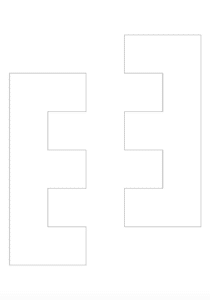
You can download it here https://drive.google.com/file/d/1zP0mUiUYDr1U5APwV6X8xJX6ascLRs4i/view?usp=sharing
Note for 1/4″ plywood users
If you are using quarter-inch ply you’ll need to scale the above drawing (and all other Neat French Cleat plans, including the spacers)
You can see how to convert to quarter-inch plywood here
Recommended starting settings (by material / laser type)
- For 3–4 mm plywood on diode lasers, start with moderate power and multiple passes; for 6–9 mm plywood you’ll likely need slower speeds or more passes.
- CO₂ lasers have more power, so you can cut the same thickness faster and usually in one pass – but you’ll still need to test because plywood glue and species vary a lot.
Treat any setting list (including this one) as a starting line, not the finish. Every machine and every sheet of ply behaves a little differently – that’s why your 5‑minute test strip is more valuable than any chart.
Your first “calibration cleat” project
The perfect first project for your new laser
Instead of jumping straight into a complex holder, start with one simple piece that teaches you everything:
- A basic Neat French Cleat wallboard or a simple nests panel is ideal.
- It has straight cuts, finger joints, and the hanging ‘hook’, so you can see how your kerf and settings behave on a real Neat French cleat design.
- Finger joints or tabs go together with a firm push, not loose and not needing a mallet.
- The tool holder hangs flat on your cleat rail with no rocking or twist.
- Parts drop out cleanly from the sheet without you having to snap fibres that never fully cut.
“Once this first holder feels right, you’ve effectively calibrated your laser for the whole Neat French Cleat system – every matching holder you cut after this will benefit from the same dialled‑in setup.”
Common beginner issues (and quick fixes)
If it’s not cutting cleanly, check these first
- Doesn’t cut all the way through:
- Slow down the speed a little or add one more pass.
- Make sure the wood is flat and the focus is correct.
- Edges are badly burnt or wide:
- Joints are loose:
- Re‑run the kerf test and increase the kerf compensation value a little.
- Try a different sheet – cheap plywood can vary a lot in thickness and voids.
Where Neat French Cleat fits in
Turn your dialled‑in laser into a full cleat wall
Once your laser is tuned, you don’t need to reinvent anything. Neat French Cleat plans give you a modular, matching system of wallboards and holders – all designed to cut on hobby‑level lasers and line up perfectly on a 45° cleat wall.
- If you’re new, start with the Free Plans – it includes a first wall holder that’s proven to work in real workshops. Just vist https://neatfrenchcleat.com/get-you-free-cleat-plans-here and download the free plans right now
- Already have your first holder done? The Master System lets you expand without ever worrying about clashing sizes or random designs.
Choose your workshop transformation.
Best for full workshop transformations—Save over €700 vs buying individual files
Start with a few essential holders or invest in the Master System to get the full blueprints for a professional, unified shop that grows with your tool collection.

✅ Instant access to all 200+ precision plans, from heavy-duty power tool racks to small consumable storage.
✅ Never waste time designing a holder from scratch again. You get a cohesive, professional look where every piece fits the same 45° geometry.
✅ Build your dream shop at your own pace, knowing you already have the perfect plan for every new tool you bring to the bench.
The master system includes wallboards, shelves, nests, and specialized tool holders, all based on a modular series of fixed dimensions. This system is designed to make your workspace neat and efficient. Whether you’re looking to organize tools or just need a smarter storage solution, our products can help.
About the Author

Alan is a maker, woodworker, and creator of the Neat French Cleat system. After years of trial and error (and a few walls that didn’t quite work), he developed a modular approach to French cleat storage that prioritizes efficiency, aesthetics, and real workshop workflows.
Find more plans, videos, and workshop organization tips at neatfrenchcleat.com